
Schedule Software for Remote and Global Teams
Remote teams often work across several countries and time zones, which makes a shared schedule easy to get wrong. ShiftApp shows every shift in each person's time zone, so no one has to manually convert times.
It suits teams such as:
It suits teams such as:
- distributed call centers
- telehealth and telemedicine services
- social media help desks
- inbound sales teams
- follow-the-sun technical support
Key features
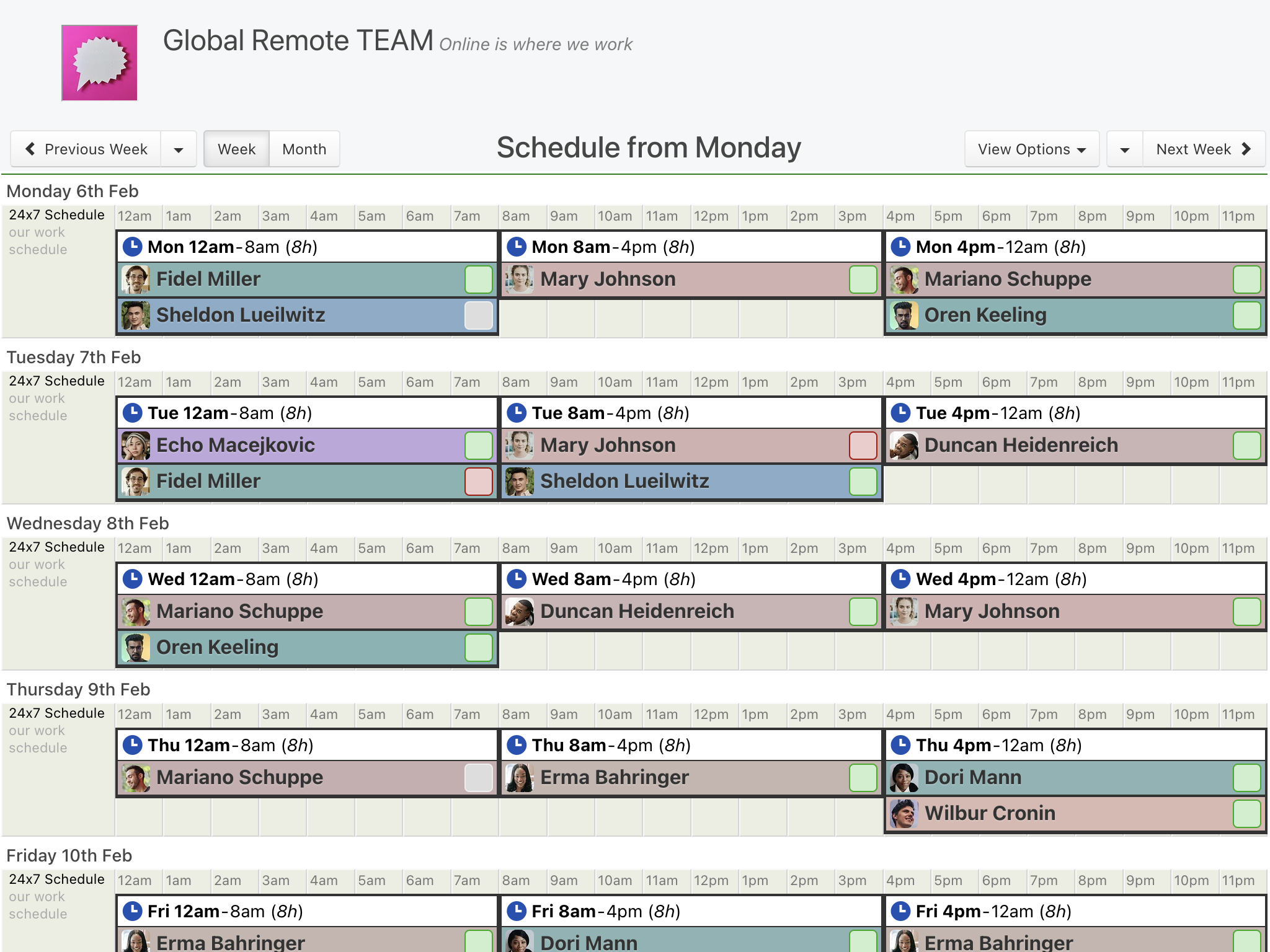
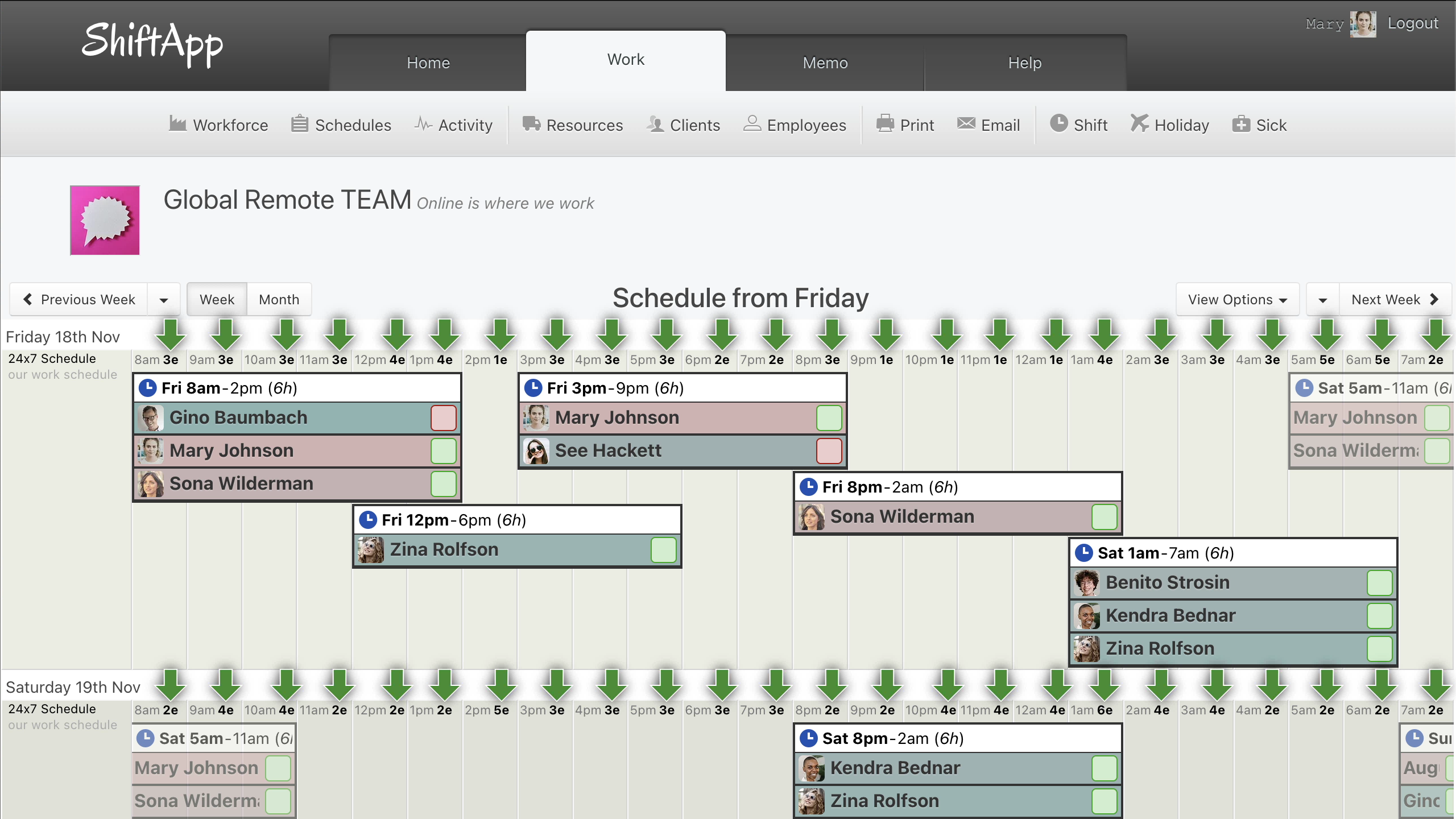
Time zones handled for you: everyone sees shift times in their own time zone, including the changes when daylight saving starts and ends.
24/7 schedules: build 8-hour, 12-hour or 24-hour shift patterns, or any pattern you need, and use coverage counts to check that each hour is staffed.
Repeating shifts: set up the pattern once, and it repeats into future weeks.
Availability: staff enter their availability in their local time, and managers see it in theirs.
Notifications: staff are told when a shift is added or changed, and reminded before each one.
Calendar feeds: staff can add their shifts to Google Calendar, Apple Calendar or Outlook with a calendar feed.
Printouts and exports: print the schedule, or export shifts, hours, time off and sick leave to CSV.
ShiftApp was chosen amongst a selection of competing solutions due to its reputation, recommendation, and immediate ease of use whilst testing the product. ShiftApp has now become a key tool in the management of our most important service as we have found it extremely useful for our purposes. The GPs with whom we use the solution with have also greatly welcomed the use of ShiftApp as it has helped them with keeping track of their shifts with us. The aftercare which I have personally experienced was fantastic. I tried using the advisory chat available through the ShiftApp website and was immediately contacted by the Support Guru who instantly knew how to help me and did so with great courtesy and speed.

Douglas Sehsuvaroglu
Client Relations Director
talktoadoctor
Getting started
Create your workforce: add your business and your first schedule.
Add your team: add employees and any other managers, then invite them to the app.
Build the schedule: add shifts, set the regular ones to repeat, and add notes where needed.
Run it day to day: make changes on the web or in the app, and staff are told straight away.
Add your team: add employees and any other managers, then invite them to the app.
Build the schedule: add shifts, set the regular ones to repeat, and add notes where needed.
Run it day to day: make changes on the web or in the app, and staff are told straight away.

Also included
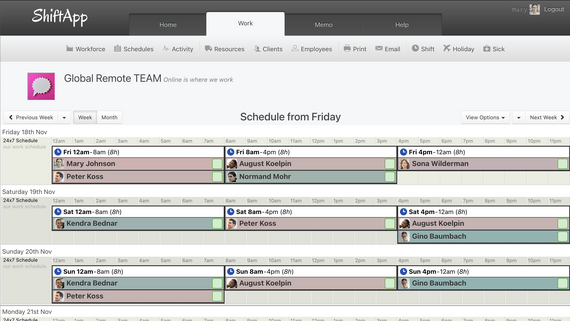
The same schedule on any device: managers and staff see the same calendar-style schedule on the web and in the mobile app.
Memos and chat: send updates to the whole team or one person with memos, and see who has read them. Team chat keeps day-to-day conversations in one place.
Backups: keep a nightly backup of upcoming shifts in your own Google Drive.
Memos and chat: send updates to the whole team or one person with memos, and see who has read them. Team chat keeps day-to-day conversations in one place.
Backups: keep a nightly backup of upcoming shifts in your own Google Drive.
Common questions
What happens when the clocks change?
Each person sees shift times in their own time zone, including after their clocks change, so no one has to work out the new times.
What if someone moves to another country?
They change the time zone in their user settings, and their shifts show in the new local time.
Can a 24-hour schedule run past midnight?
Yes. Set your schedule hours to finish the next day, and night shifts can run over midnight.
Can staff see who else is on shift?
If you allow it. Choose whether staff see everyone's shifts or only their own.
Try ShiftApp with your remote team
Start a 21-day free trial with no credit card. Add a few team members in different time zones and see how the schedule looks to each of them.
Start free trial 21 days free. No card needed.